Working with three security researchers, the team captured the TV’s network traffic with Wireshark, decompiled its firmware, and rooted several sets to see what was running inside.
What they found went far beyond basic tracking. The television captures audio clips of what you say in your own home, scans your local network to catalog your other connected devices, and desperately attempts to phone home to upload this data even if you explicitly ban the TV from your Wi-Fi network.
The report also quotes the brazen language LG Ad Solutions uses when pitching advertisers. Executives say they “own the glass” and promise marketers the ability to “own the living room”. That is your living room they are talking about.
“We own the glass. We own the TV.” - Serge Matta, President of LG Ad Solutions
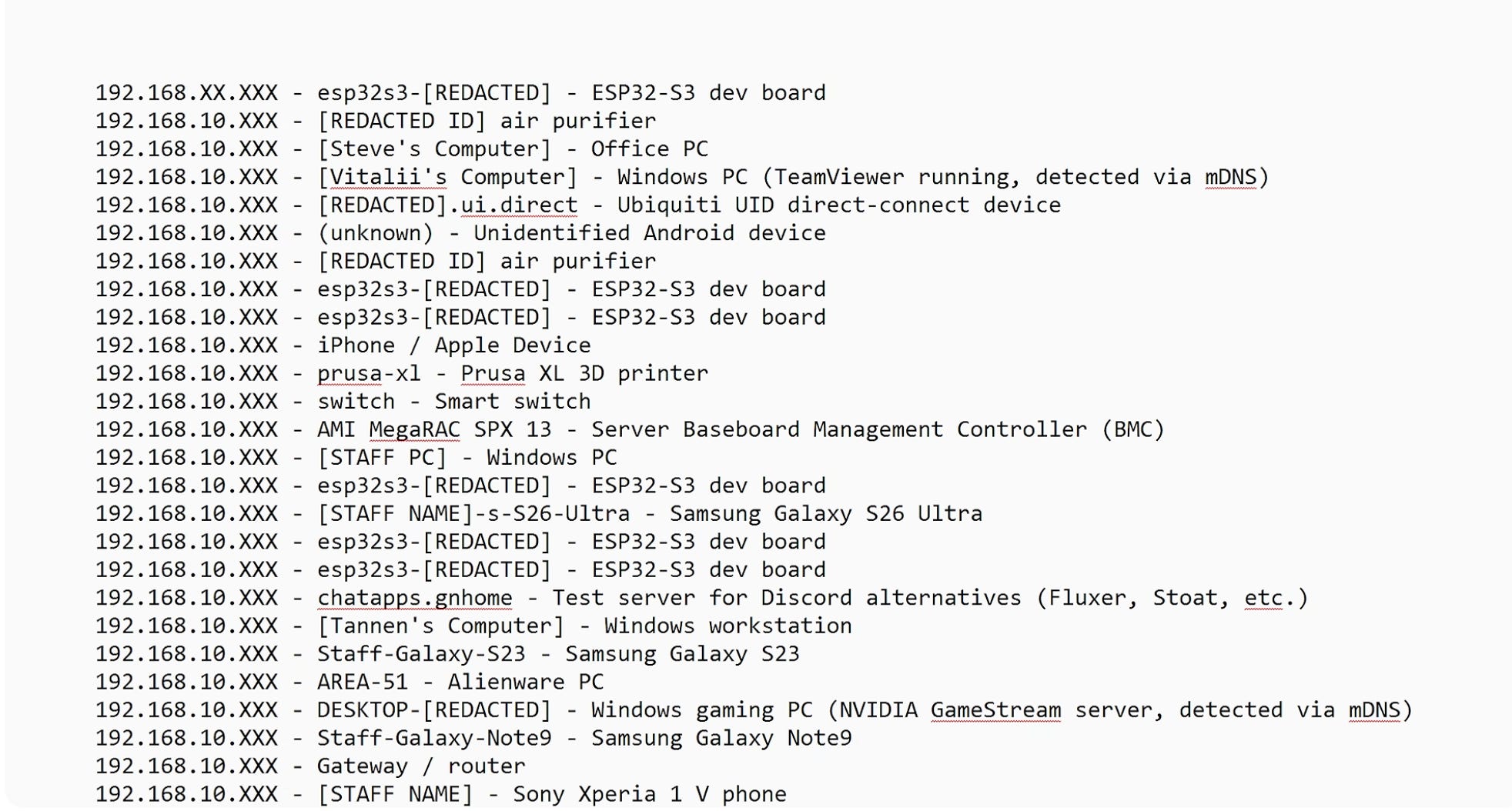
The TV maps every device on your network
The TV continuously sweeps the local network, cataloging every device it can reach along with names, MAC addresses, and signal strength.
In the Gamers Nexus office it found 38 devices, including staff phones, smartwatches, the thermostats, and an editing machine running TeamViewer.
They even found that a staff member’s username was exposed in the logs.
The researchers’ read on why is that some of it is ordinary device discovery, and the rest is tracking. If the TV sees an iPhone 12 on the network, you can be shown ads for the latest iPhone. LG also sells air conditioners, and the TV now knows what thermostat you own.
It also inventories nearby Wi-Fi networks, recording their names and signal strength.
That list is enough to geolocate the TV without a GPS chip.
It records audio from the screen and the microphone
LG’s automatic content recognition system, ACR, fingerprints what plays through the screen and speakers, including HDMI input from a laptop, and reports it to LG’s ad subsidiary Alphonso every few minutes.
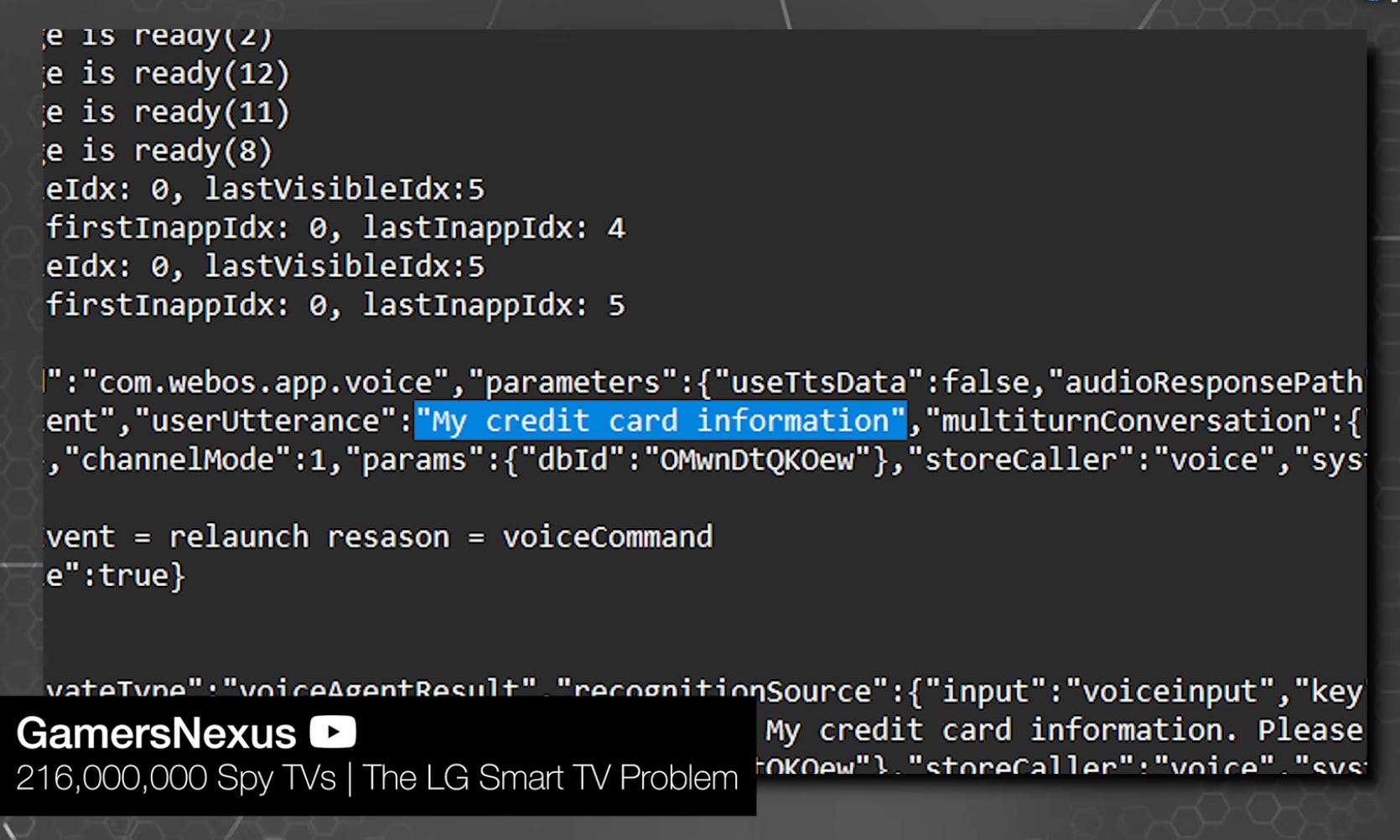
Voice commands are transcribed to plain text and kept in log files on the TV.
After each command the microphone stays open for another ten to fifteen seconds, which is long enough to capture the conversation happening around it.
Unplugging from WiFi does not stop the collection
ACR keeps running while the TV is offline.
The researchers also showed that anyone with remote access can record from the microphone with the network disconnected, then pull the files once the TV reconnects. A TV you cut off last month is still a TV waiting to report.
Opting out sends one last snapshot of everything
Opting out is not a clean exit either.
The firmware shows that when you disable tracking, the TV sends a final snapshot of everything it has collected to Alphonso before the setting takes effect.
How to stop it
There are several ways to shut this down.
The options below are ranked from most effective to least, which also happens to run from the most technical to the least.
Warranty information and disclaimer: The first two options may void your warranty. This information is provided for educational purposes only. You are solely responsible for how you use it.
Option #1: Physically disable tracking
The most permanent fix is surgical.
One LG G6 owner, after watching the Gamers Nexus investigation, opened his brand new OLED and removed the hardware that makes surveillance possible.
He recorded the process in a video, and his walkthrough is the basis for what follows.
The teardown has three parts. First, the back panel comes off, held on by dozens of tiny screws.
A plastic strip along the bottom edge carries the speaker connectors and other cabling, so it has to stay with the chassis rather than come away with the back.
Second, two cables run from the main board down to the bottom of the set.
One of them goes to the Wi-Fi and Bluetooth module, and disconnecting it cuts the TV’s ability to reach any wireless network, including the open neighbor hotspots Gamers Nexus warned about.
Third, a small module sits in an opening at the bottom of the bezel, holding the circuit board with the power switch and IR receiver.
That same board carries two MEMS microphones, each about the size of a pinhead. He removed both with a hot air rework station and flux.
An alternative he floated but did not test is flipping the board and sealing the microphone port on each with a drop of epoxy.
The remote has its own microphone, which can be removed the same way, or you can simply leave the batteries out and control the set another way. He uses Home Assistant, and the TV now lives as a dumb monitor.
One practical note from his experience: LG’s warranty registration repeatedly pushes you to connect the TV to the network to complete the process.
There is a page on LG’s site where you can enter the serial number manually instead. Do that before you open the set if you expect to ever make a claim.
This is hands down the most permanent solution. It is also delicate hardware work.
Option #2: Jailbreak the TV
For those who cannot open the case, the next best route is to root the TV and disable future updates. Once rooted, you use the set as a display for an external device such as an Apple TV or a computer over HDMI.
There are many options for external media, with varying degrees of privacy. Apple also tracks you, but its business model does not depend on selling your data to third parties, so most people consider it an acceptable risk.
Step 1: Find the model number
Every exploit targets specific models and firmware versions, so the model number comes first. There are three ways to find it.
Method 1: Remote shortcut. Point the remote at the TV and press the Mute button three times in rapid succession. An informational menu pops up with the model number or product code listed at the top.
Method 2: Settings menu. On newer webOS versions, press Settings (gear icon), then All Settings, General, About This TV or Devices, TV Information. On older webOS versions, press Settings, then All Settings, Support, TV Information or Product/Service Info.
Method 3: Physical label. If the TV will not turn on, look at the back of the panel. A white or black factory sticker lists the Model No. and Serial No.
The model number looks like OLED55C3PUA or 55UQ75006LF.
Note the firmware version from the same TV Information screen, since you need both.
Step 2: Find an exploit
The community tracker at cani.rootmy.tv lists which exploits work against which firmware. Combine the model number with the firmware version in the search, for example: https://cani.rootmy.tv/?q=75QNED80UQA+04.53.40
Most exploits need internet connectivity to run. To prevent the TV from exfiltrating data during the jailbreak, put it on a network with no outside connection.
A phone hotspot with mobile data turned off works, or you can unplug the internet cable from your home router. Confirm from another device that external internet is down by trying to load google.com before you start.
Current exploits and their status:
SlopBro: latest known rootable version 04.60.85.
DangBro: latest known rootable version 04.60.85. According to the developer logs on XDA, DangBro only works on TVs equipped with a DVB broadcast tuner, which is the European and global variant. North American models, which end in UQA, use an ATSC tuner and are not compatible.
faultmanager (patched): latest known rootable version 04.50.64, patched in 04.53.40.
DejaVuln (patched): latest known rootable version 04.40.94, patched in 04.41.03.
ASM (patched): latest known rootable version 03.33.85, patched in 04.40.75.
crashd (patched): latest known rootable version 03.33.85, patched in 04.40.75.
WTA (patched): latest known rootable version 03.33.85, patched in 04.40.75.
RootMy.TV (patched): latest known rootable version 02.00.81, patched in 03.10.70.
If your firmware is newer than the latest rootable version for every exploit, there is no current jailbreak for your set.
Step 3: Root the TV
Select the exploit that matches your specific TV model and firmware version, then follow its provided instructions.
Once the root is successful:
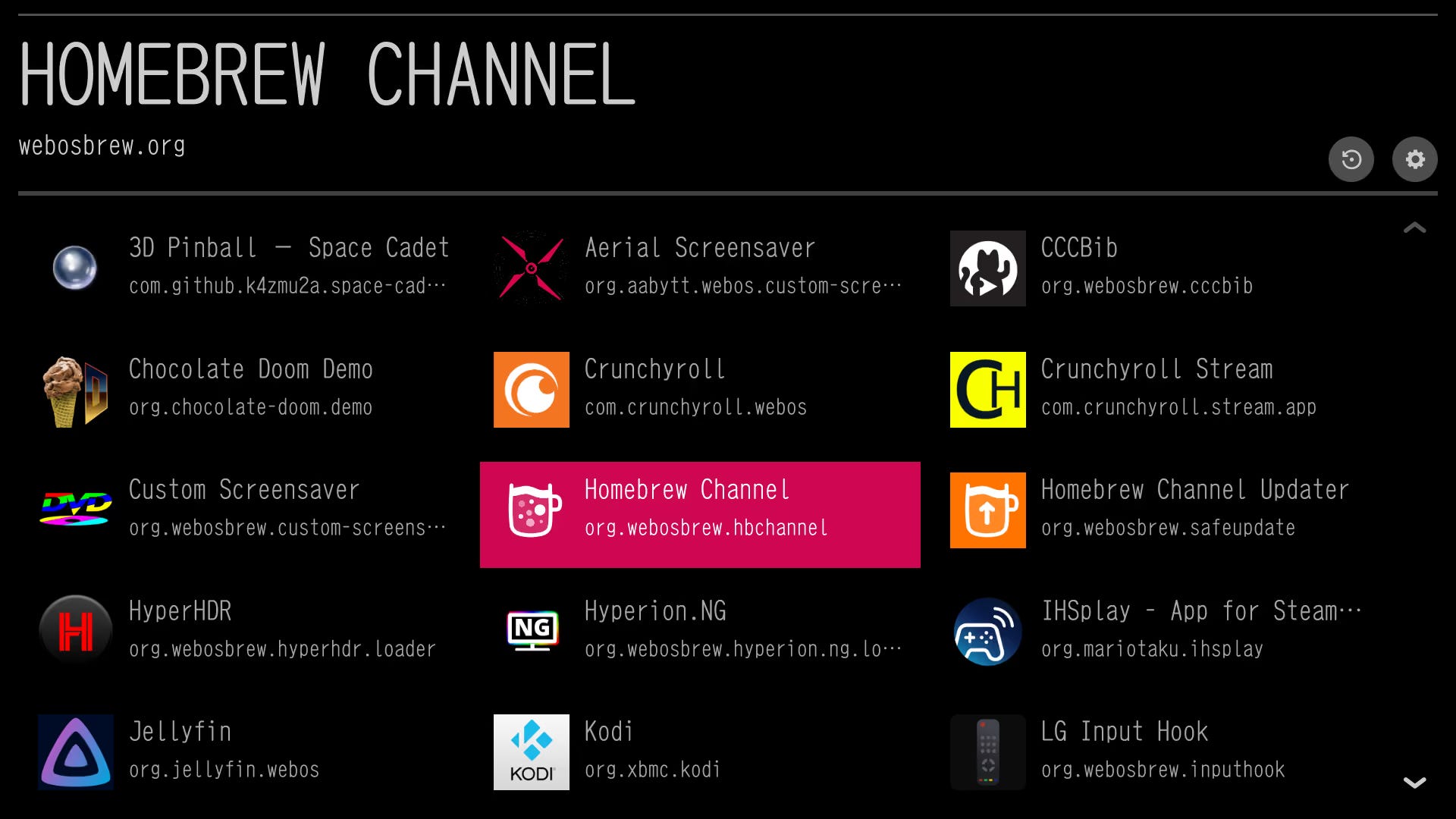
Enable "Block System Updates" in Homebrew: Once rooted, launch your newly installed webosbrew Homebrew Channel. Toggle the Block system updates option to On. This stops the TV from communicating with LG's update verification servers at the root level.
Purge cached update files: If your TV has already quietly downloaded a pending update in the background, navigate to /mnt/lg/cmn_data/swupdate using an SSH client or a terminal app, and completely delete Image_Update_Info.xml and Package_Update_Info.xml to prevent an accidental installation.
Sever network connectivity: If you strictly intend to use this TV as an offline monitor, pull the physical Ethernet cable or navigate to the network dashboard to forget your Wi-Fi network. This permanently isolates the TV and forces all traffic exclusively through your HDMI connection.
Your TV is now rooted and your privacy is restored.
LGTV Jailbreak Q&A
What can I do with my TV after I root it?
Rooting installs the webOS Homebrew Channel, which is an independent app store and a set of root-level tools for the TV.
Out of the box it gives you three things LG does not:
The first is control over updates: The Homebrew Channel disables system updates by default on install, and its settings include a “Block system updates” option that stops the TV from checking for firmware at all. Without this, LG can patch the exploit you used and push new tracking consents with the next update. The webOS “Automatic system updates” setting should be turned off as well.
The second is telemetry blocking: The Homebrew Channel’s startup script includes an option to disable some of LG’s telemetry, which works by pointing the paths LG’s reporting services write to at a dummy directory. The list of blocked paths is maintained in the project and updated over time.
The third is access: The Homebrew Channel provides a persistent SSH server with root privileges, which is what lets you inspect the file system, read the logs, and audit what the TV is doing. LG’s official Developer Mode expires after 50 hours of inactivity and never grants full access; root access does not expire.
Beyond that, the Homebrew repository hosts community apps that LG would not accept on its own store, along with startup hooks for running your own scripts at boot. Community projects built on rooted TVs include an OLED panel wear and burn-in dashboard with a Home Assistant bridge, which runs without the TV needing internet access.
Is webOS Homebrew safe?
For general use, yes. The webOS Homebrew Channel is open source, maintained publicly by active developers, and auditable by anyone.
It is the tool the TV modding community has trusted for years, and the RootMyTV project that popularized it is upfront that rooting is unsupported by LG and carries some risk of damage.
The Homebrew Channel also ships with a failsafe mode: if the TV crashes on boot, it exposes only an emergency shell so the cause can be fixed rather than leaving the set dead. “Safe” is relative to what root access does, though. Two things change once the TV is rooted.
Total OS access:Rooting strips away the sandbox that protects the operating system. Any application installed through the Homebrew Channel runs with root privileges.
App ecosystem vetting: The channel itself is clean, but the third-party apps in the store are submitted by individual community members. A malicious or poorly written application could capture inputs or brick the device’s firmware.
The worst case is a supply chain attack.
That happens when a malicious actor compromises the source upstream, for example by hijacking a developer’s GitHub account, poisoning a build server, or compromising an app registry.
Because the TV trusts and downloads official “updates” pushed by the Homebrew team, a breach there would reach every rooted TV that is online.
If that happened, the threats include:
Network sniffing and data exfiltration: A compromised update could inject a network tool such as tcpdump or a proxy to intercept local traffic, monitoring unencrypted data on your home Wi-Fi to log passwords, smart home inputs, or network maps.
Local file theft: A malicious root package could gather local data logs, system files, or authentication cookies for connected apps such as Netflix, YouTube, or Amazon Prime, then upload them to a command-and-control server.
Joining a botnet: Smart TVs have capable processors. A compromised TV could run quiet background scripts to participate in DDoS attacks or crypto-mining without your knowledge, spiking your home network traffic.
Hardware bricking: Root access gives software control over the TV’s flash storage. A malicious payload could corrupt the bootloader partitions, leaving the TV in a permanent boot loop or unable to turn on. That cannot be fixed without opening the chassis and using soldering tools.
The defense against all four is the same: air-gap the TV and use it only as a display. Once you have rooted it locally, cleaned out the system files, and enabled the tracking blocks, disconnect it from your network permanently.
Even if the entire Homebrew repository were hacked tomorrow, an offline television cannot receive the poisoned update or exfiltrate a single file.
If you want an extra check before running the exploit, the Homebrew Channel releases on GitHub are the reference copy, and comparing your downloaded files against them confirms nothing was modified in transit.
How can I view the stored audio files?
Gamers Nexus researchers found that the TV does not store audio recordings in the ordinary sense.
It stores the products of audio processing, and those live in a few places.
Voice transcripts are the most readable. Every voice command the TV hears is converted to plain text and written to the system logs, along with the ambient conversation captured in the window after each command. Gamers Nexus pulled these transcripts from the logs and found their own conversations in them, including test phrases spoken after the command was complete.
On newer sets the verbose logs are written to a RAM disk, so they survive a reboot but are lost when the power cable is pulled. They also rotate quickly. A separate process collects the interesting entries and writes them to flash, and other logs persisted after a factory reset.
ACR audio is stored as fingerprints rather than recordings.
The TV downsamples captured audio to 8 kHz mono, runs a transform over roughly six seconds of it, combines the results into a hash, and uploads that hash to Alphonso. The raw six-second clips are discarded after hashing.
The researchers were only able to recover them by intercepting the ACR process in memory before the hash step, which requires more than reading files off disk.
Under webOS, the relevant paths are:
/media/internal/, the user and internal media partition
/var/log/, where system logs are compiled
/tmp/, where temporary runtime files are buffered
How can I disable telemetry, audio recording and networking?
Root gives you a shell on the TV’s Linux system.
Everything below runs from that shell, and anything you want to survive a reboot goes in a script under /var/lib/webosbrew/init.d/, which the Homebrew Channel runs on every boot.
Connecting: The Homebrew Channel runs an SSH server on port 22 and an unauthenticated telnet server, both as root. Turn on SSH under Homebrew Channel, Settings, then reboot.
Find the TV’s IP in its network settings or on your router, and from a computer on the same LAN:
Ex: ssh root@192.168.1.50
The default password is alpine.
Change that first: copy your SSH public key to /home/root/.ssh/authorized_keys on the TV, reboot, and the password login goes away. Then disable telnet in the same Homebrew settings, since it accepts anyone on the LAN with no password.
Telemetry: The Homebrew startup script already bind-mounts a read-only empty directory over LG’s crash-report and upload spools (/tmp/rdxd, /tmp/uploadd, /var/spool/rdxd, /var/spool/uploadd/pending, /var/spool/uploadd/uploaded) so nothing can be queued for upload.
The “Block system updates” option adds LG’s update servers to /etc/hosts pointed at 127.0.0.1. Turn both on in Homebrew settings.
To find what else is reporting, list running processes and look at what is talking to the network:
Stop anything you find with kill <pid> and prevent it from starting again by disabling its init job. webOS uses upstart, so initctl list shows the jobs and initctl stop <job> stops one.
Process and job names vary by firmware, which is why you look first rather than working from a fixed list.
Audio recording: List the capture devices the system exposes:
arecord -l
ls /dev/snd/
Gamers Nexus found the built-in mics, the far-field mics, the remote’s voice input, a feedback mic, and any USB or Bluetooth audio all appear here.
See who has them open:
fuser -v /dev/snd/*
Stop the voice service the same way as the telemetry processes, then remove the capture device nodes:
rm /dev/snd/pcmC0D0c
Use the actual pcm*c names from your listing; the trailing c marks capture devices. Do this in your init.d script so it happens on every boot, since /dev is rebuilt at startup. For HDMI audio, either remove its capture node the same way or route sound through a receiver so it never enters the TV.
Networking: webOS manages networking with ConnMan. Disable the wireless radio and bring the interface down:
connmanctl disable wifi
ip link set wlan0 down
That stops the nearby-network inventory and any chance of the TV joining an open hotspot on its own. Keep the LAN connection on Ethernet, put the TV on its own VLAN, and add a router rule blocking everything except your local subnet, since a router rule is outside the TV’s reach.
On the TV itself, a static IP with no gateway and no DNS removes the internet path even without the router rule.
Making it stick: Paste this into the SSH session. It writes the script, makes it executable, and runs it once so you can check the result before rebooting.
cat > /var/lib/webosbrew/init.d/privacy.sh <<'EOF'
#!/bin/sh
# Runs at every boot via Homebrew Channel init.d hooks.

# --- Telemetry ---
# Kill LG reporting, ACR, and voice processes. Names vary by firmware.
for p in $(ps | grep -iE 'alphonso|acr|rdx|upload|telemetry|voice' | grep -v grep | awk '{print $1}'); do
    kill "$p" 2>/dev/null
done

# Stop the matching upstart jobs so they do not respawn.
for j in $(initctl list 2>/dev/null | grep -iE 'alphonso|acr|rdx|upload|telemetry|voice' | awk '{print $1}'); do
    initctl stop "$j" 2>/dev/null
done

# --- Audio capture ---
# Remove every capture device node. Trailing c = capture. Rebuilt each boot, so this must run each boot.
for d in /dev/snd/pcm*c; do
    [ -e "$d" ] && rm -f "$d"
done

# --- Networking ---
# Disable the wireless radio and interface. Ethernet stays up.
connmanctl disable wifi 2>/dev/null
ip link set wlan0 down 2>/dev/null
EOF

chmod +x /var/lib/webosbrew/init.d/privacy.sh
sh /var/lib/webosbrew/init.d/privacy.sh
Check it worked before you reboot:
ps | grep -iE 'alphonso|acr|rdx|upload|telemetry|voice' | grep -v grep
ls /dev/snd/
ip link show wlan0
The first should return nothing, the second should show no pcm*c entries, and the third should show state DOWN. If a process comes back on its own, run initctl list to find its job name and add it to the pattern in the script.
The telemetry spool bind mounts and the update server block are already handled by the Homebrew Channel’s own startup script, so they are not repeated here. Keep both turned on in Homebrew settings.
Two cautions. The grep patterns are broad on purpose, so read the output of the first check to make sure nothing you rely on was caught, such as a homebrew app with “upload” in its name.
If any of your script breaks the boot, the Homebrew Channel drops into failsafe mode with a telnet shell, from which you can rm /var/lib/webosbrew/init.d/privacy.sh and reboot.
Option #3: Improve the settings
If you don’t want to void your warranty or stop using the TV’s native features, you can choose this option. There are settings you can set to presumably limit the tracking.
Just because you set the setting, there is nothing but a thin layer of trust holding it in place, and you are accepting the risk that LG continues to collect data anyway.
1. Turn off Live Plus
Live Plus is LG’s name for automatic content recognition.
It takes screenshots and audio snippets of the content you’re watching and sends them to LG’s servers so LG knows what is on your screen.
It ships enabled. Some 2024 webOS models in Europe label it “Interactive TV Service” instead, so check for that name if Live Plus is missing.
To turn it off, go to Settings, All Settings, General, System, Additional Settings, Live Plus, Off. The toggle moves between firmware revisions: on webOS 22 it lives under General and Quick Start+, and pre-release webOS 25 builds appear to nest it under a “Personalized Experience” submenu.
The settings menu supports text search if you can’t find it.
2. Opt out of the user agreements
The user agreements are the consents LG collects during setup.
Two are required, the Terms of Use and the Privacy Policy.
The rest are optional, and Gamers Nexus found that LG presents them with “select all” highlighted by default. Here is what each optional agreement grants:
Viewing Information: lets LG and its service partner Alphonso Inc. collect what you’re watching across streaming services, including content from connected devices, using ACR.
Voice Information: grants LG permission to collect information about your voice commands, which is also sent to third parties.
Interest-Based Advertising: allows targeted ads on the TV as well as on phones, tablets, and laptops that share the same IP address.
Data Partners: lets LG share viewing information with Alphonso for ad measurement and analytics.
Marketing Communications: sends pop-up news and special offers to your TV.
To opt out, navigate to Settings, Support, Privacy & Terms, User Agreements. Uncheck everything except the required Terms of Use and Privacy Policy.
3. Limit ad tracking
The TV carries an advertiser ID that companies use to compile information on you, and changing it periodically can reduce tracking.
In the Additional Settings menu, open Advertisement, turn Limit AD Tracking on, then select Reset AD ID to clear existing tracking data.
There is also a Do Not Sell My Personal Information toggle under Settings, Support, Privacy & Terms, next to the User Agreements. Gamers Nexus found it disabled by default on the sets they tested. Turn it on.
Return to General, select Home Settings, then turn off Home Promotion as well as Content Recommendation.
4. Turn off home screen promotions
Return to General, select Home Settings, then turn off Home Promotion as well as Content Recommendation.
5. Turn off voice recognition
Voice Recognition powers hands-free voice control and the AI Concierge. Gamers Nexus found that after a voice command the microphone stays open for ten to fifteen seconds and captures ambient conversation in the room. Go to Settings, All Settings, General, AI Service, then uncheck Voice Recognition if you don’t use the AI Concierge.
6. Recheck after every firmware update
LG bundles consents, and webOS 24 added two new optional consents in April 2026 that default to opt-in. Gamers Nexus also documented firmware updates adding advertising IDs and cookie toggles to older sets whose owners had never accepted any terms. The Live Plus toggle moves between firmware revisions as well, so confirm it is still off after each update.
An important limitation
These toggles reduce the most visible data collection. They do not fix what the Gamers Nexus team found at the hardware level, such as the second microphone that ignores the settings mute.
The strongest protection is to keep the TV offline permanently. ACR requires an outbound internet connection, so a smart TV that is never connected cannot perform it. If you stream through an Apple TV, Roku, or Fire TV stick, you can leave the TV itself offline forever with nothing lost. Keep in mind that those boxes have their own tracking settings to review.
If your TV has already been online at some point, the data LG collected is on its servers, not on the set. LG does not offer an online privacy dashboard for managing TV settings remotely, but it has a privacy site with forms to request data deletion or opt-out. Those forms usually require the TV’s serial number and other details.
If you use a streaming box exclusively: reset, then air-gap
If you are exclusively using an Apple TV or similar box, the most effective route is a factory reset followed by a permanent network block.
You don’t need to risk the rooting process if your goal is just to zero out the device.
Step 1: Factory reset. Go to Settings, All Settings, General, System, Reset to Initial Settings.
Step 2: Air-gap the TV permanently. ACR cannot run without an outbound connection, so do not input your Wi-Fi password when the TV restarts.
Step 3: Revoke permissions. The setup wizard presents the same optional agreements described above. Go to User Agreements during the initial setup and uncheck all boxes (Voice Information, ACR, Interest-Based Ads).
Follow-up: Gamer’s Nexus
Gamer’s Nexus released a new video, going over LG’s response to their research.
Disturbing research. I think it is great that you provide means around it, but these are mostly for the technical users off course. It’s important to raise the awareness about this and I would love to see more people knowing what a tv can do.






Disturbing research. I think it is great that you provide means around it, but these are mostly for the technical users off course. It’s important to raise the awareness about this and I would love to see more people knowing what a tv can do.
I am using a PiHole and have blocked all traffic from the LG TV client address. Is this adequate?